So, I know what I’m going to keep. Today I had Claude whip up four outlines for my services section. They sound nothing like me, but that’s hardly the point for now. I just need some services page for my home page to link to.
The services I offer are:
Custom WordPress Website Design & Development
SEO Strategy & Search Optimization
Digital Marketing Systems & Automation
Site Optimization & Performance Enhancement
Other thing things I decided on were some fun elements like building a camera feed element to my homepage, I remember 10 years ago there was a company that had a video of their workspace. The camera must have been in the rafters, but I thought it was an interesting idea. I’m not even sure it was live, but the idea of creating a digital panopticon for my workspace seems fascinating. More on that later.
I don’t really like the massive fluid container size. I’m not a fan specifically when it’s free floating text, so I’m not really going to use that, but I do like love that gradient list of links. So I’m definitely goinng to try to incorporate that.
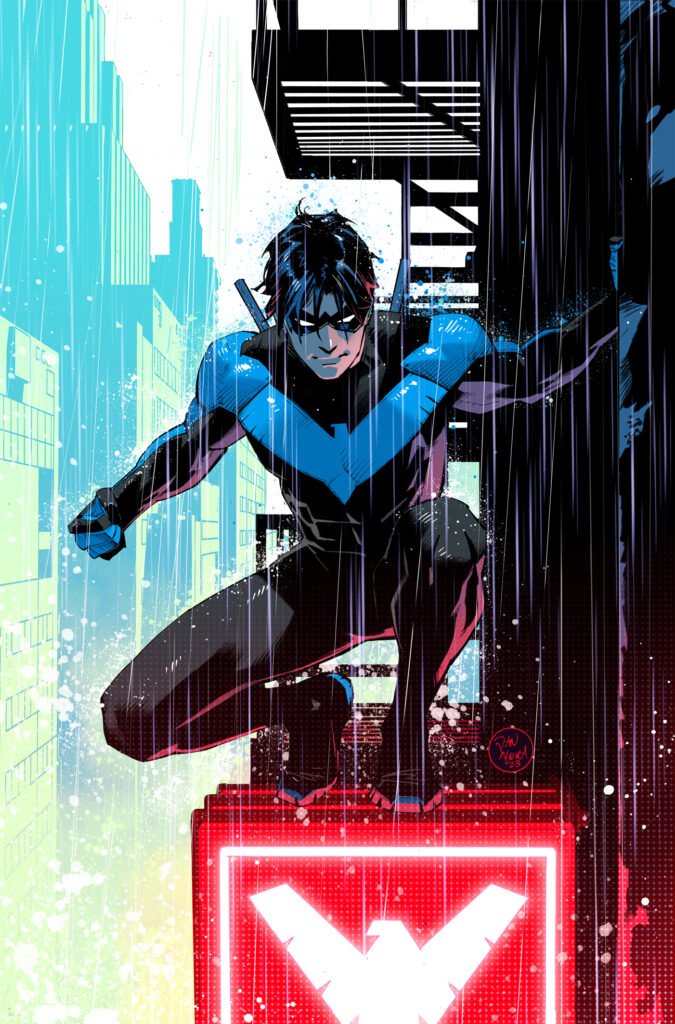
Color! I’ve decided to embrace my inner child on this one. It’s going to be the color scheme of nightwing.
I loved comics as a kid and the grown up robin, aka Nightwing, was my absolute favorite. So, that it the color scheme for clickfoundry 2025, leaning into blacks, greys, with an accent of blue, celtic blue.
Name: Celtic Blue
Hex: #3366CC
RGB: (51, 102, 204)
CMYK: (75, 50, 0, 20)
HSV: 220° 75% 80%
HSL: 220° 60% 50%
RAL: 5012
Pantone: 2726 C
buttons! I really like these button They move a little more than what I would like them to, but I can make those adjustments on my site and maybe incorporate some of my color.
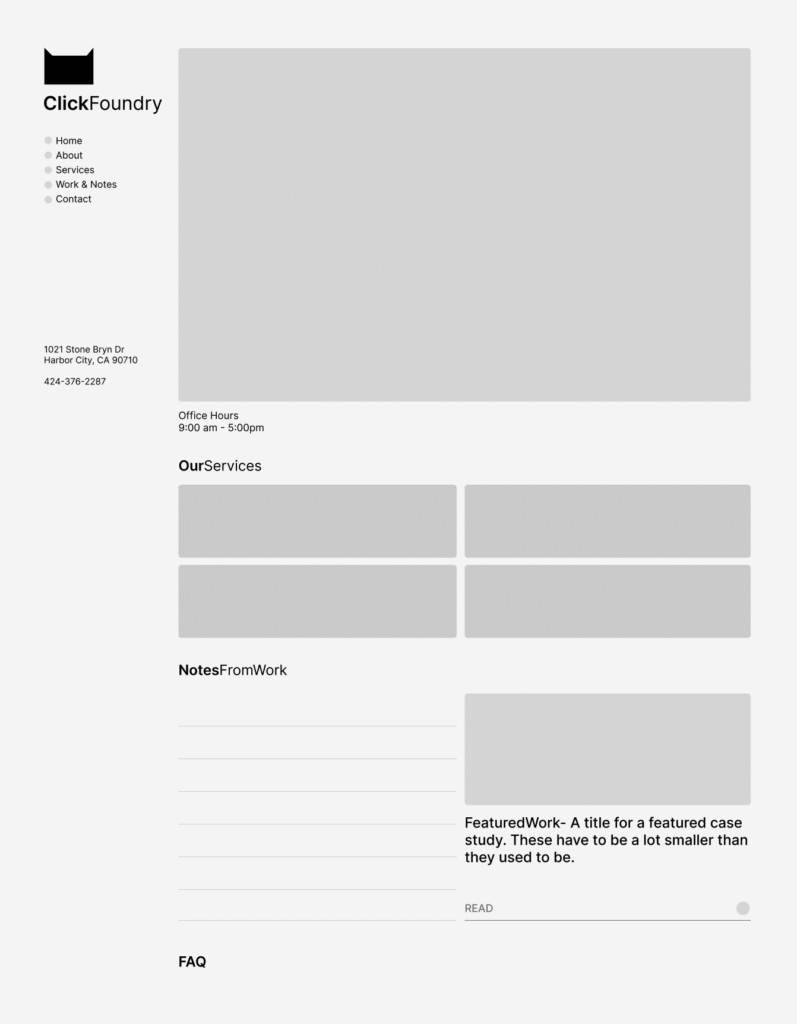
And I’ve sorted out the flow of the homepage
ABOVE THE FOLD
nav, tagline, location data, video feed, office hours, cta buttons,
BELOW THE FOLD
services, featured work (link gradient idea), notes and FAQ
Sidea, which is a sidenote and an idea. what if we made it look like a generative text app. sidebar on the left content in the center, this would force everything into neat cards, while creating visual distinction by not looking like other website.
“Dispelling one trick pony myths, isn’t he?”- earl
I just completed my first WordPress plugin for public release—a free image converter and optimizer that automatically creates WebP and AVIF versions of uploaded JPG and PNG images.
Why This Matters
Image optimization is crucial for site speed. A 1500×1200 JPG that’s 1.4MB becomes just 250KB in WebP and 99KB in AVIF format—that’s a massive performance boost for your website.
The Build Process
Using Claude and ChatGPT, I developed this plugin in about 75% of the time it would have taken manually. The AI tools were particularly helpful for:
Code structure and WordPress best practices
Debugging 50+ errors and warnings from WordPress’ plugin checker
HTML escaping and security standards
The key was being specific about requirements—I knew I wanted to use ImageMagick, which most PHP servers already have enabled, avoiding unnecessary bloat.
What’s Next
The plugin code has been submitted for WordPress marketplace review. It’s completely free (no freemium model) and handles automatic image conversion with adjustable compression settings.
I went through my local backup to see what I had going on. It’s in essence a home, about page, blog archive, a ton of posts (only one ranking), a pricing page (which I wasn’t too fond of), a web design page, and a contact page. Click Foundry had been active since 2020, so these metrics were a real bummer.
According to analytics, it looks like my home page, blog post and contact page were the most viewed. Followed by my pricing page.
So you want barba.js to handle smooth transitions in your custom WordPress theme? Barba.js makes using a website feel like a smooth experience by allowing you to add transition based animations and there are a ton of details (like where in the transition) that allow it to be very powerful. And for a simple html site that you’re coding by hand, I think it’s a really simple library to implement. Integrating Barba.js into WordPress, however, comes with some challenges. I’ll walk you through how to implement barba.js into your WordPress functions, template files.
This will be my third time building a site using barba.js and WordPress. humnlab.com uses barba to control home page to project page animations and a bunch of page specific animations.
Prepping the WordPress canvas for Barba.js
I’m building a fresh theme based on UnderScore. The barba.js WordPress build is my high end client base build, so it’s the starting point for me. I’m a bit old school and still remember all the classes from Bootstrap and am comfortable with their grid, so I’ll be adding bootstrap to the mix as well.
Understanding the Template Structure for WordPress
The fundamentals are important and WordPress has great documentation. So go here for the definitive WordPress template structure document.
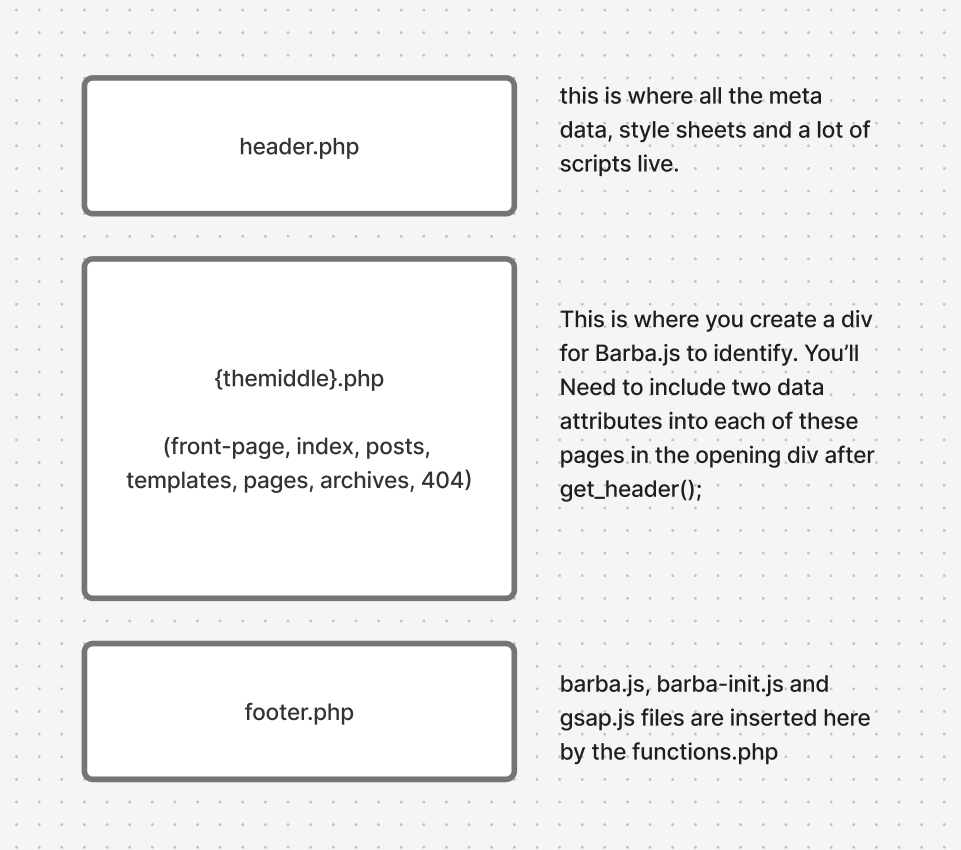
All you really need to know for this, IMO, is that WordPress chunks out a single page experience into 3 files. A top, middle and bottom file. The top and bottom files are always the header.php and footer.php files respectively. Header files are in charge of meta data, style and script files and footer files are usually a bunch of javascript files.
The middle file can change, it can be a template file, post file or a page file and within those you can call on a lot of templates. It will be these middle files where we will incorporate barba.js
Understanding where barba goes in the template structure
Adding Barba.js to the WordPress functions.php file
Before we start adding the wrapper and container barba data attributes, we need to include barba in our theme files. To install you’ll need to know how to use your commandline interpreter and a package manager. That to me, seems like a huge pain in the ass, generally how I feel about package managers. So you can go here an download the barba.js file here and add it to your javascript assets folder.
Create a file called barba-init.js in the same folder. This is where all your barba.js transition rules will live.
For this project, i’m adding GSAP for animations, it’s well established, but new to me, I’ll be using AI to build out simple animation builds for me. I’ve used anime.js, and lottie.js for more complex animations, both great.
Click the get GSAP button in the link above, pull the gsap.min.js file and add it to your js assets.
functions.php code – enqueue scripts for barba and animations in WordPress
barba is a library for single page applications and when used properly it can save apps a lot of time by opting out of loading scripts, navs, style sheets that are loaded sitewide. Most websites share a lot of that code and still reload it with every new page with only some of the content being unique to individual pages.
So, let’s call the parts that are new to each page the container. The part outside of the container, the repeatable information, let’s call that the wrapper.
This is what that would look like in some basic html boiler plate with the Barba.js structure:
The body tag will be found in the header.php file. You don’t have to do it this way, but for me using _s, this works well for me. For most theme files, definitely true for _S, the body tag will be found in the header.php
<?php
/**
 * The header for our theme
 *
 * This is the template that displays all of the <head> section and everything up until <div id="content">
 *
 * @link https://developer.wordpress.org/themes/basics/template-files/#template-partials
 *
 * @package clickfoundryTemplate
 */

?>
<!doctype html>
<html <?php language_attributes(); ?>>
<head>
	<meta charset="<?php bloginfo( 'charset' ); ?>">
	<meta name="viewport" content="width=device-width, initial-scale=1">
	<link rel="profile" href="https://gmpg.org/xfn/11">

	<?php wp_head(); ?>
</head>

<body <?php body_class(); ?> data-barba="wrapper">
<?php wp_body_open(); ?>
WordPress index.php with Barba.js
On to the container portion. Barba needs two data attributes: data-barba and data-barba-namespace. I think technically, you don’t need the second, but your life will be much easier if you include it on template pages, either native ones to the theme or ones that you create.
<?php
/**
 * The main template file
 *
 * This is the most generic template file in a WordPress theme
 * and one of the two required files for a theme (the other being style.css).
 * It is used to display a page when nothing more specific matches a query.
 * E.g., it puts together the home page when no home.php file exists.
 *
 * @link https://developer.wordpress.org/themes/basics/template-hierarchy/
 *
 * @package clickfoundryTemplate
 */

get_header();
?>

<main id="primary" class="site-main container-xxl"  data-barba="container" data-barba-namespace="<?php echo get_post_type(); ?>"> <!--this is where the barba container starts-->
  <div class="row">
    <div class="col-12 col-lg-8">
   <?php
    if ( have_posts() ) :
    if ( is_home() && ! is_front_page() ) :
   ?>
<header>
<h1 class="page-title screen-reader-text"><?php single_post_title(); ?></h1>
</header>
<?php
  endif;
  /* Start the Loop */
  while ( have_posts() ) :
  the_post();

    //Include the Post-Type-specific template for the content.
    get_template_part( 'template-parts/content', get_post_type() );
    endwhile;
      the_posts_navigation();
    else :
      get_template_part( 'template-parts/content', 'none' );
    endif;
    ?>
    </div>
    <div class="col-12 col-lg-4">
      <?php get_sidebar();?>
    </div>
  </div>
</main><!-- #main barba container ends -->

<?php
get_footer();
You can take a look at these sample files in their entirety on my github page.
Big shout out to Fjobeir’s barba post, who helped me understand this my first go around 4 years ago.
Making a transition with Barba on WordPress (barba-init.js)
So, I made this ketchup and mustard transition on my local build to test it out.
There are different stages in the barba transition lifecycle that you can hook into, but for simplicity I chose leave and enter. I used Claude to give me the GSAP animation code, but after looking at GSAP seems really nice. So the opacity of everything in the barba container fades out, the background attribute in the body element goes to red when leaving. When entering, we set the container opacity at 0, the body color to orange than white and then we increase the container opacity to 1. Check it out.
document.addEventListener("DOMContentLoaded", function() {
  barba.init({
    transitions: [{
      name: 'basic-transition',
        leave(data) {
        // Clean up namespace classes
        document.body.className = document.body.className.replace(/\bnamespace-\S+/g, '').trim();

        // Create GSAP timeline for leave animation
        const tl = gsap.timeline();

        // Animate content opacity to 0 and background to red simultaneously
        tl.to(data.current.container, {
          opacity: 0,
          duration: 0.5,
          ease: "power2.inOut"
        })
        .to(document.body, {
          backgroundColor: "#ff0000", // red
          duration: 0.5,
          ease: "power2.inOut"
        }, 0); // Start at the same time as opacity animation

        return tl;
      },

      enter(data) {
        const namespace = data.next.namespace;
        document.body.classList.add(`namespace-${namespace}`);

        // Set initial state for entering content
        gsap.set(data.next.container, { opacity: 0 });

        // Create GSAP timeline for enter animation
        const tl = gsap.timeline();

        // Background color sequence: red → orange → white
        tl.to(document.body, {
          backgroundColor: "#ffa500", // orange
          duration: 0.3,
          ease: "power2.inOut"
        })
        .to(document.body, {
          backgroundColor: "#ffffff", // white
          duration: 0.4,
          ease: "power2.inOut"
        })
        // Then fade in content
        .to(data.next.container, {
          opacity: 1,
          duration: 0.5,
          ease: "power2.inOut"
        });

        return tl;
      }
    }]
  });
});
Now comes the issues with incorporating barba.js with WordPress
The barba.js library and WordPress in a lot of ways are at odds with each other. WordPress is dynamically creating single pages and it’s highly adaptable because of the built in plugin community. Barba.js is dependent on stability in the gap between the wrapper and the container divs and that just isn’t guaranteed without custom development of workarounds.
There is a great group of people working on this library, so if you’re stuck look for their slack channel or discord. I can try and help, if you reach out. Here is my list of issues:
Scripts need to re-initialize, but not double up on page transitions
Sometimes a certain page will have a plugin that no other page does. It’s actually good SEO practice to only have what you want running at any given time, so during page transitions, things can break because the required files aren’t present since those files are in the gap between the wrapper and the container.
You can manage that by tracking namespaces and making sure your loading the scripts that need to be loaded by removing and adding the files, but that gets tedious.
Some devs get clever and track which scripts are already loaded so they only fetch new ones during transitions. Smart in theory—no duplicates, parallel loading—but that skips a critical step: re-initializing scripts that are already in memory but tied to DOM elements you just replaced.
Example: Contact Form 7’s file might be loaded site-wide, but if you click into a page with a form, the form still needs its init() call. If that doesn’t happen, the form looks fine but won’t submit.
I’m just keeping a list of plugins or libraries that have re-init setups and having running a dom script to see if i have to load them by sniffing out plugin/library specific classes.
if (document.querySelector('.wpcf7-form')) {
    // Element exists
    wpcf7.init();
}
Can’t think of other issues, leave some in the comments and maybe I’ll add them here.